
Required Settings
Configure these settings before using Rift
Important: Settings Required
You must configure these settings, otherwise the tool will not perform correctly!
Required Configuration
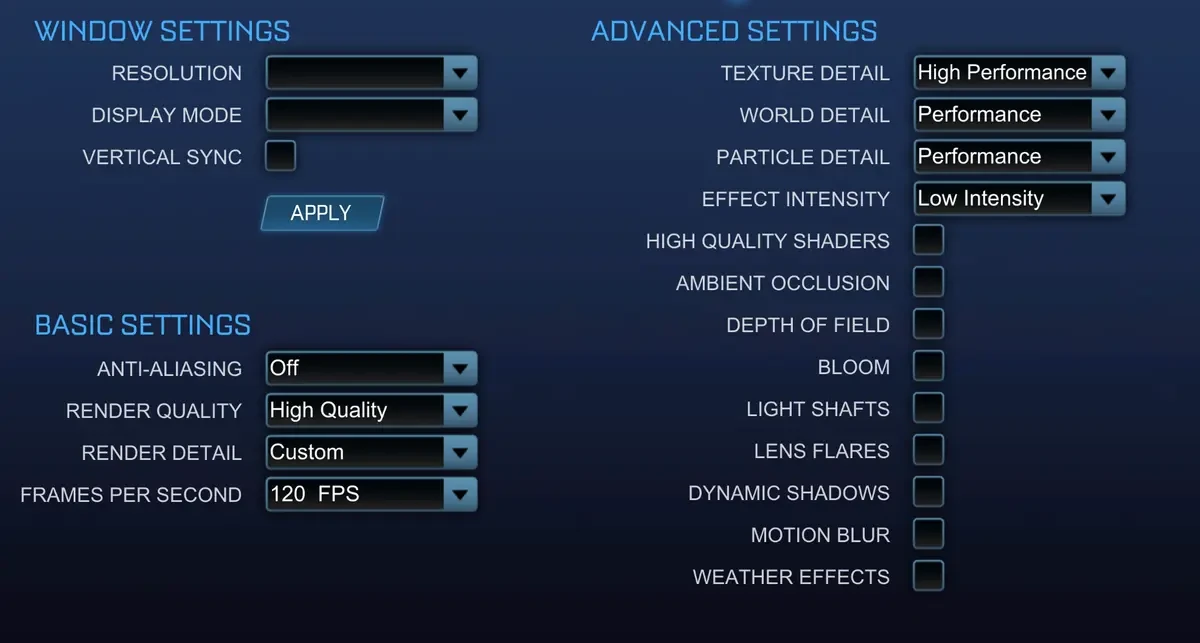
Cap FPS to 120
Ensure you are getting stable 120 FPS in your graphics settings.
Vsync OFF
Disable vertical sync for better input response.
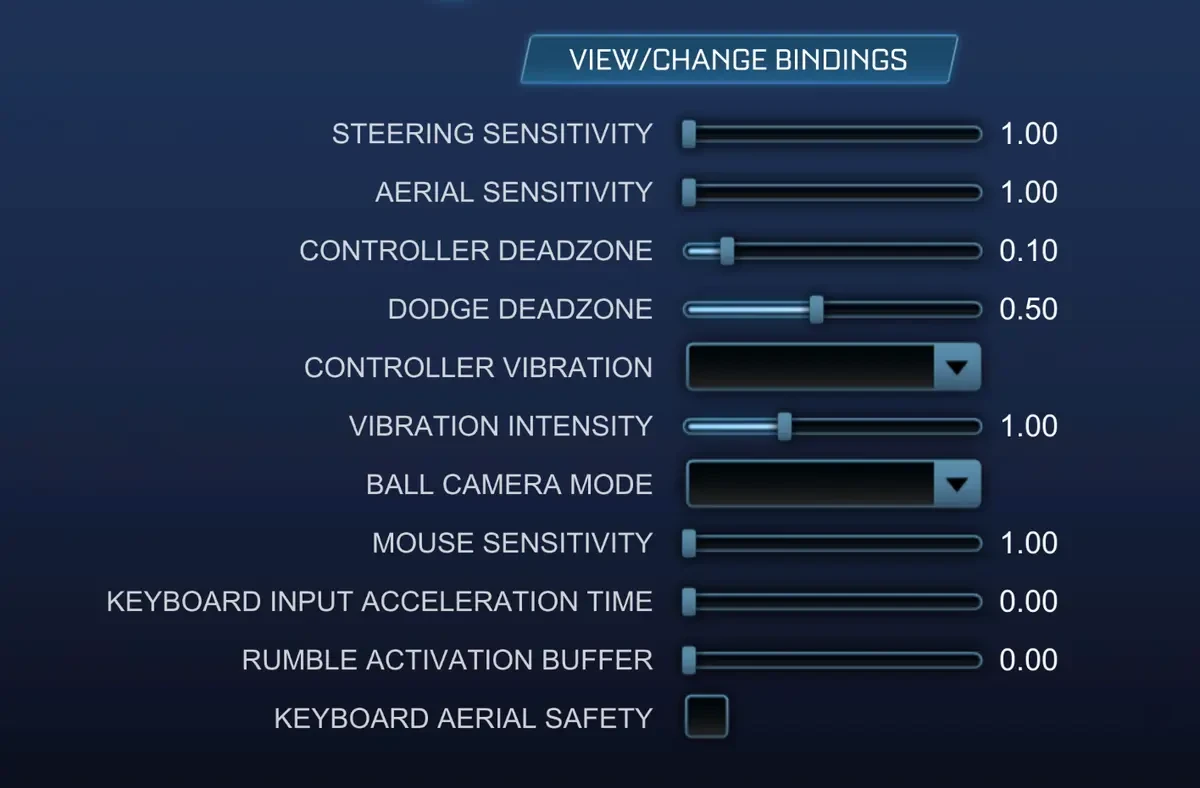
Dodge Deadzone 0.50
Set your dodge deadzone to exactly 0.50 in controls.
Aerial Keyboard Safety OFF
Disable this setting for proper aerial control.
Performance Optimization
Setting 120 FPS in Rocket League's settings is not enough — you need to make sure you're actually getting a stable 120 FPS in-game. Here's how to check:
📊 Verify your actual FPS with the Performance Overlay
While in-game with Rift injected, open the Rift Menu and go to the "Stats" tab. Enable the "Performance Overlay" toggle.
You should now see a live FPS counter in the top-left corner of your screen. This shows your real, actual framerate — not what Rocket League's settings say.
If your FPS is below 120 → the bot will play significantly worse!
The bot is designed to run at exactly 120 FPS. If the overlay shows less than 120, lower your graphics settings (Resolution Scale, Render Quality, etc.) until you hit a stable 120.
⚙️ "Low FPS Mode (Internal Clock)" setting
In the Rift Menu under the "Main" tab, there is an option called "Low FPS Mode (Internal Clock)".
This mode is designed only for systems that cannot reach 120 FPS. It modifies how the bot processes game ticks internally.
Smoothing / Humanizer Settings
If you feel like the bot is playing badly, sluggish, or missing shots it should hit — check the Smoothing and Humanizer settings in the Rift Menu.
These settings intentionally limit the bot's accuracy and reaction speed to make it look more human-like. However, bad values can make the bot feel broken.
If you're unsure, the safest thing to do is to turn off both Smoothing and Humanizer entirely.
High Smoothing / Humanizer values = worse bot performance. If you think the bot is not playing well, disable these settings first.
Reference Screenshots
Click on an image to view it in full size